Playing Zarhold on Your Phone via Telegram: Screen, Gestures and Tips
How to play Zarhold comfortably on your phone in Telegram: full screen and rotation, the Back button, gestures, First card, weak connections and battery.
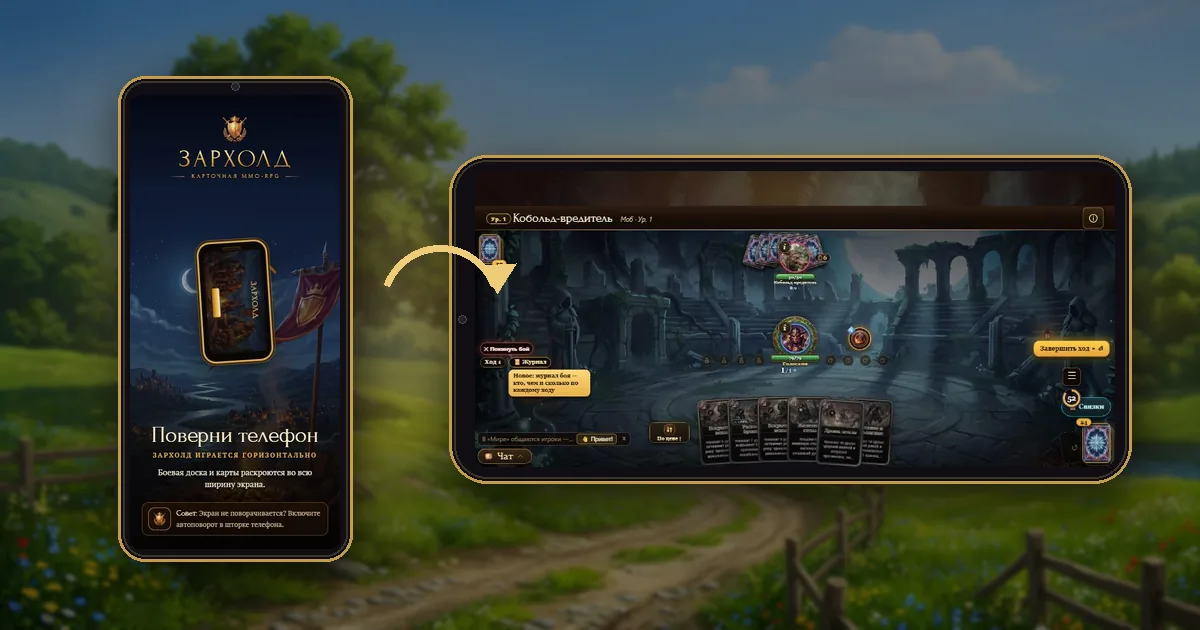
Telegram is on almost every phone, so for many players it's the shortest way into Zarhold: open the bot, tap “Play”, and a minute later you're in a fight. Here are the tips that make phone play comfortable: how to get the game full screen, which gestures work and what to adjust.
Before your first launch
- Update Telegram. Full screen and rotation lock work in recent versions of the app. In an older version the game still opens, but in a regular window.
- Turn on auto-rotate in your phone's quick settings. Without it the screen won't turn sideways.
- Open the game with the link t.me/zarholdsBot/play or the “Play” button in the @zarholdsBot bot.
Screen: sideways and full screen
Zarhold is played in landscape: the board and the cards spread across the whole width. If you hold the phone upright, the game shows a “Rotate Your Phone” screen with an auto-rotate tip. Once the phone is sideways, the game locks that position and won't spin from an accidental tilt.
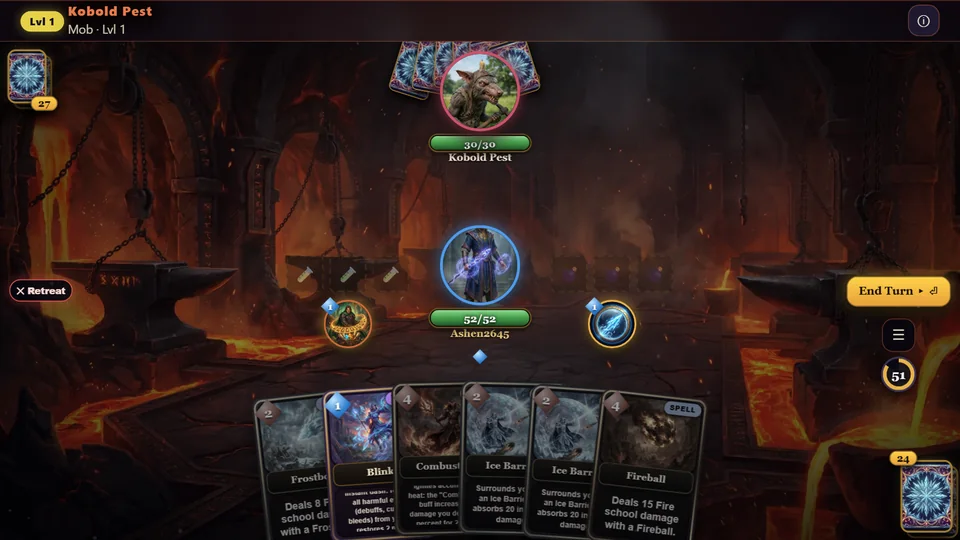
- Telegram's buttons at the top. In full screen, Telegram's “Close” and “⋯” buttons sit over the game. The game's edges move out of their way, and the board itself doesn't shrink.
- Camera notch. If a notch or a Dynamic Island gets in the way, check Settings → Controls: there's a “Notch margins” option with Auto, On and Off.
Gestures and buttons
- Telegram's “Back” works as the game's “Back”: it closes an open window or takes you to the previous screen. On Android the system back gesture does the same.
- Swiping on the board won't minimize the game. Drag cards and scroll lists freely.
- Closing asks first. Telegram asks before closing, so an accidental tap won't cost you a fight.
- Sound starts after your first tap on the screen: that's how all browser games work.
Fighting on a phone: the “⚡ First card” button
On a phone there's a “⚡ First card” button next to “End turn”. One tap plays one card: the first one in your hand's order that you have enough crystals for. The “⇅” button left of the cards changes that order.
- The button works in world fights and regular dungeons. In heroic modes, raids and any fight against players it's not there: every turn is your call.
- For heroes below level 30 it's on by default; after that it's up to you in Settings → Combat.
- It never ends your turn.
Weak connection and battery
- Connection. Each turn sends very little data: in update 0.9.770 we cut it by about 40 times on average, so fights run smoothly even on mobile data.
- Calm combat. If full-screen flashes tire you, turn on “Calm combat” in Settings → Graphics.
- Taking a break. You can minimize Telegram and come back: your hero is saved to your Telegram account.
Playing on a phone FAQ
Which phones does Zarhold on Telegram work on?
Android phones and iPhones with Telegram installed. It's best to update Telegram to a recent version so the game opens full screen.
Why won't the game turn sideways?
Most likely auto-rotate is off. Turn it on in your phone's quick settings and the game will rotate.
Can I play holding the phone upright?
No, Zarhold is played in landscape: the board and the cards are made for a wide screen.
What if I close Telegram by accident in the middle of a fight?
Telegram asks first. And if you do close it, your hero and progress stay with your Telegram account.
Zarhold at a glance
- Zarhold: a free browser MMORPG to play in any tabWhat a browser MMORPG is, how to choose one and what Zarhold offers
- Cross-Platform MMORPG with Cross Progression: ZarholdOne hero on PC, Mac, phone and tablet, and how it works
- Mobile MMORPG for Android, iPhone and iPad: ZarholdHow to play an MMORPG on Android, iPhone and iPad in the browser
- MMORPG for Mac and MacBook: Zarhold in your browserWhich MMORPGs run on macOS, and how to play Zarhold on a MacBook with no install
- Games like Albion Online: Zarhold and 6 moreWhat Albion Online does well, who Zarhold suits, and six more games like it
- MMORPG for Windows 10 and 11: Zarhold, no downloadAn MMORPG for Windows 10 and 11 or a laptop: no client, no patches, no gigabytes
Read next
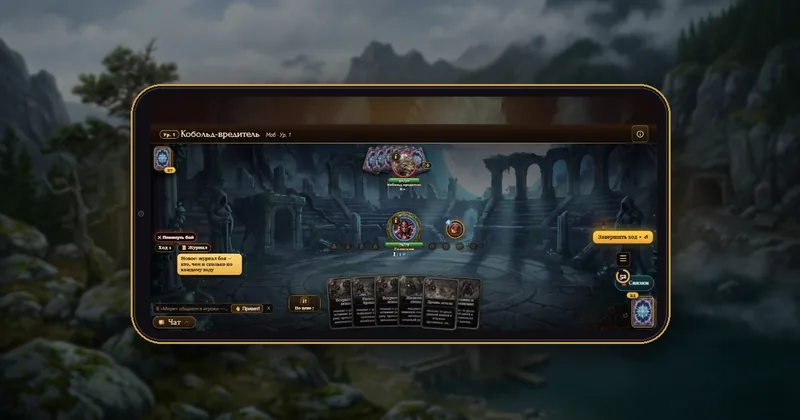
Zarhold on Telegram: How to Play the Card MMORPG Right in Your Messenger
Zarhold is officially on Telegram: open the game from the @zarholdsBot bot, sign in with Telegram and play on phone or PC in the same world as the website.
Free MMORPG on your phone with no download: how to play on Android and iPhone
An MMORPG on your phone without an app store: Zarhold runs in the Android and iPhone browser, pins to your home screen and shares your hero with your PC.
An MMORPG for phone and PC with the same hero
An MMORPG for phone and PC with the same hero: which games can do it, how to switch devices and how to continue a dungeon run right in your browser.